v0.11 · real screenshots, not mockups
All screens workflow
Every screen in the current build, in the order a real install actually hits them — captured on-device, not drawn. Five stretches: the intro, one-time setup, what living with it day to day looks like, the gate itself in both its daytime and night forms, and the ambient pill that sits quietly in the background the rest of the time. Join the waitlist to try it yourself once testing opens.
First open, before anything else
The intro
Three screens, shown once, before Permissions — name the problem, show the gate instead of describing it, then hand control back.
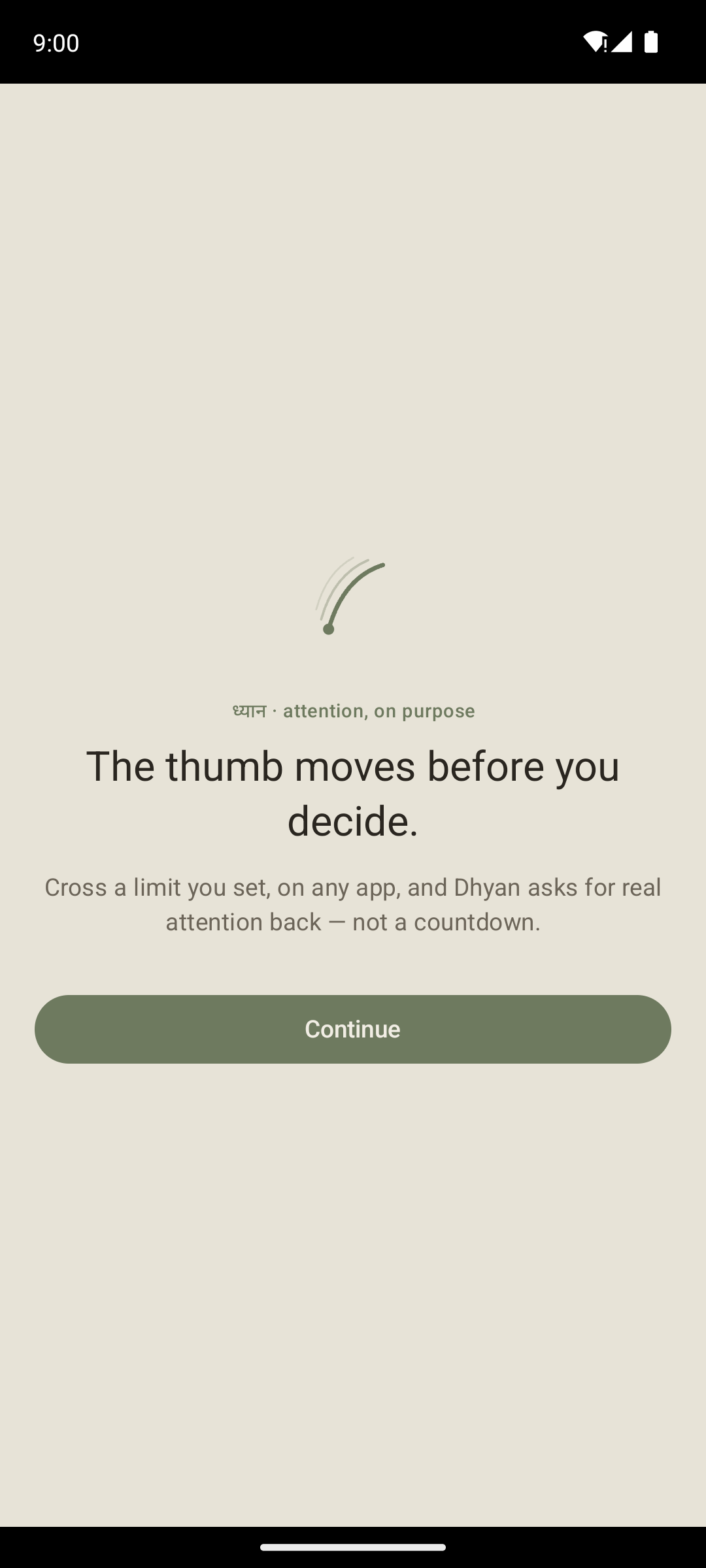
Name the problem
Swipe-stroke illustration, ध्यान kicker, Direct headline.
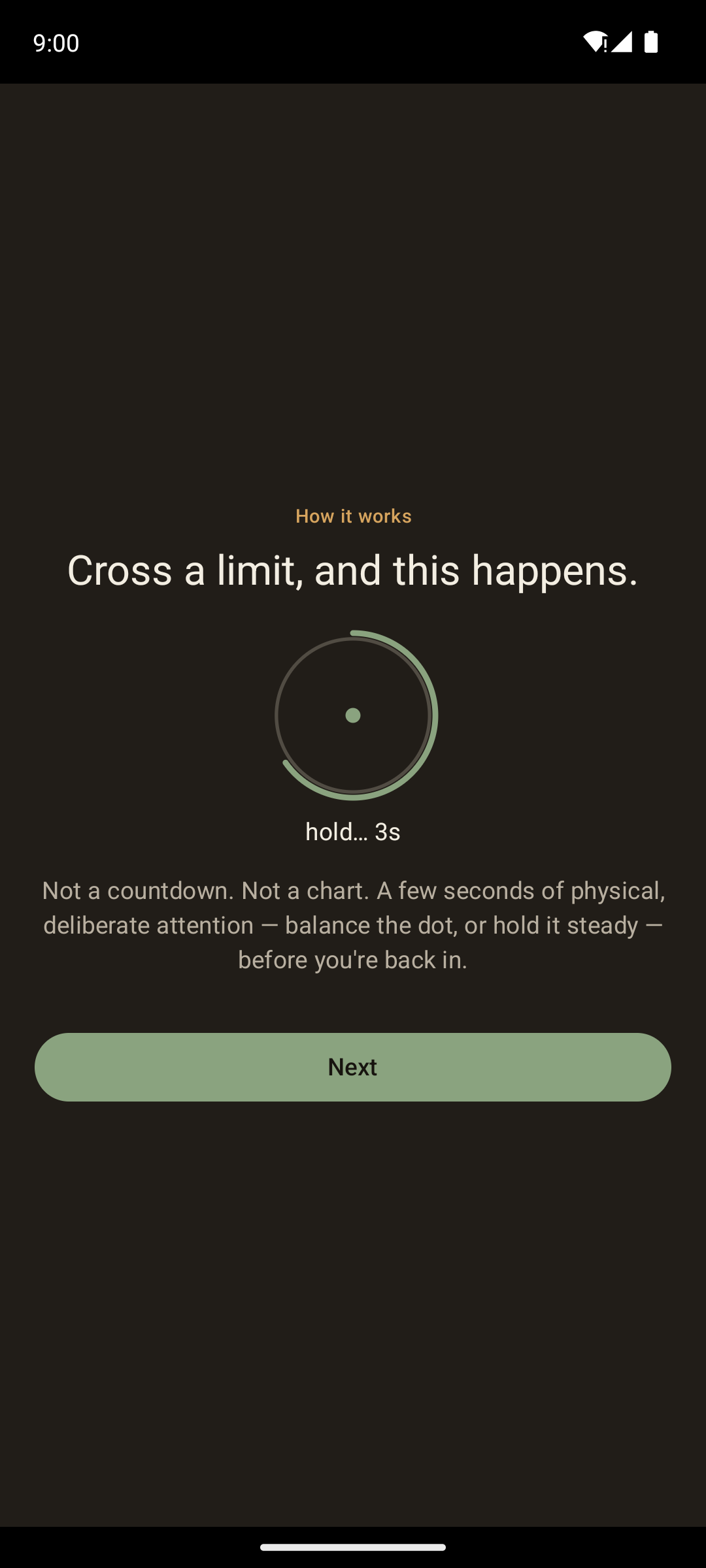
Show, don't tell
A still frame of the real gate — ring, arc, "hold… 3s."
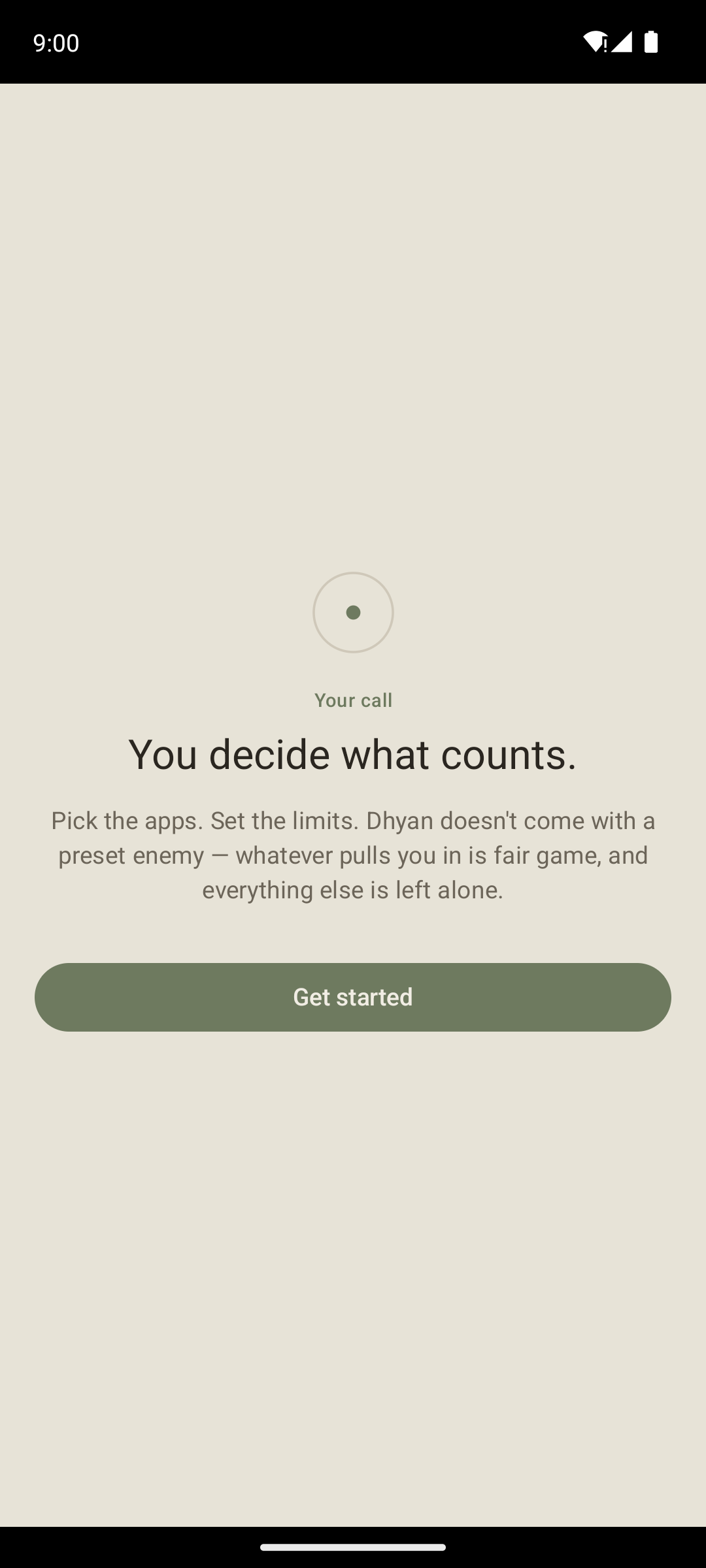
Hand control back
No preset enemy — the picker is next.
Shown once, ~30 seconds
Setup
Permissions auto-advance the moment both are granted. Every step after only ever shows once — a returning user opens straight to Today.
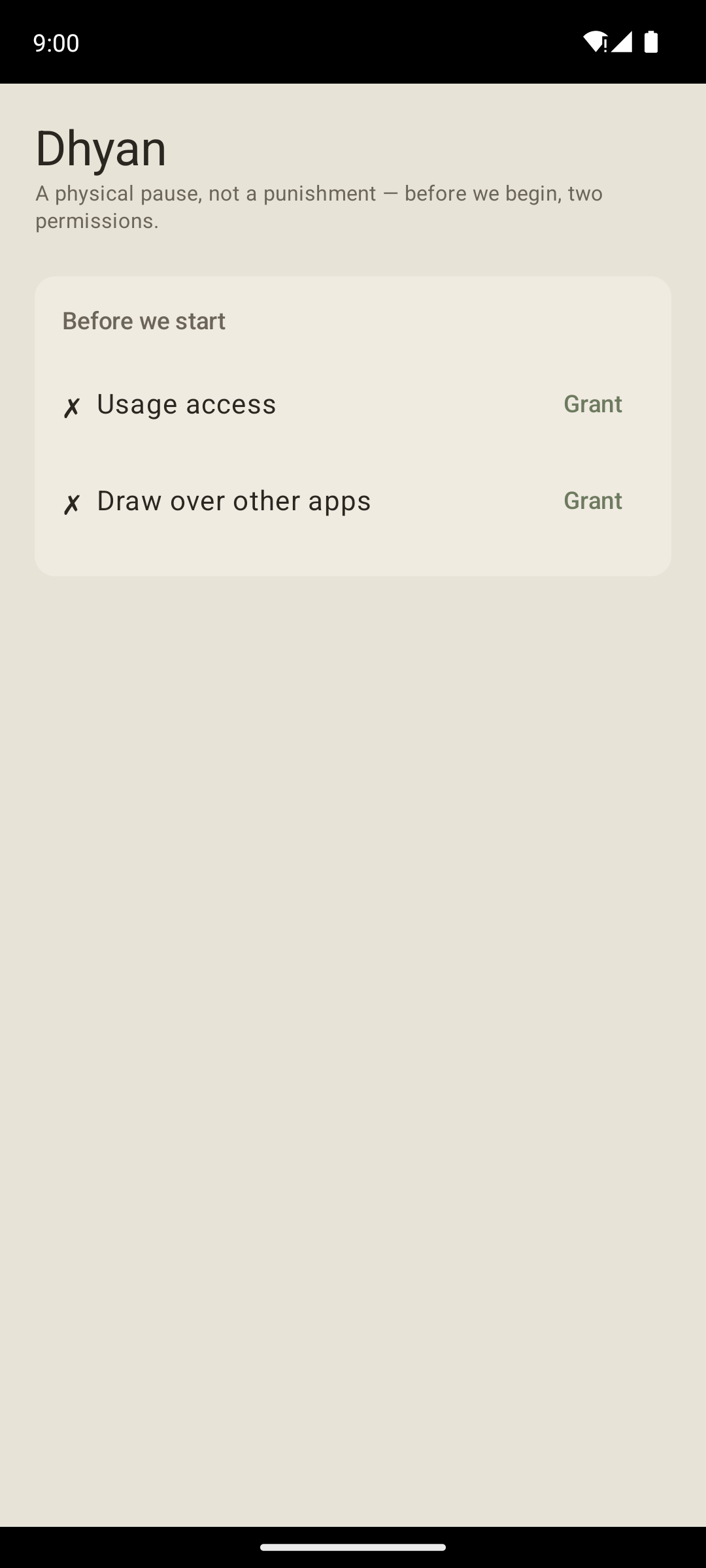
Two permissions
Usage access, draw over other apps — that's all it needs.
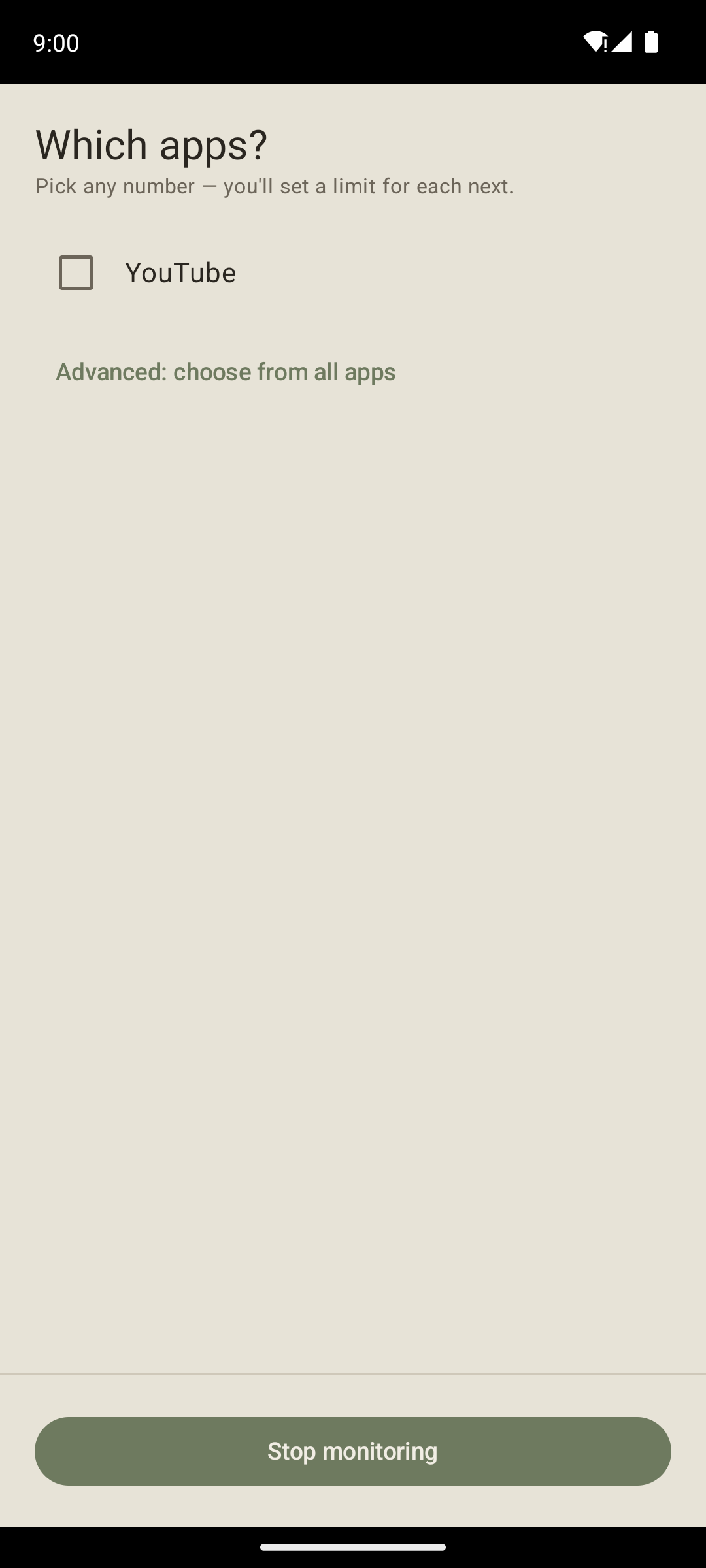
Which apps?
Category-filtered picker, plus an advanced full-list escape hatch.
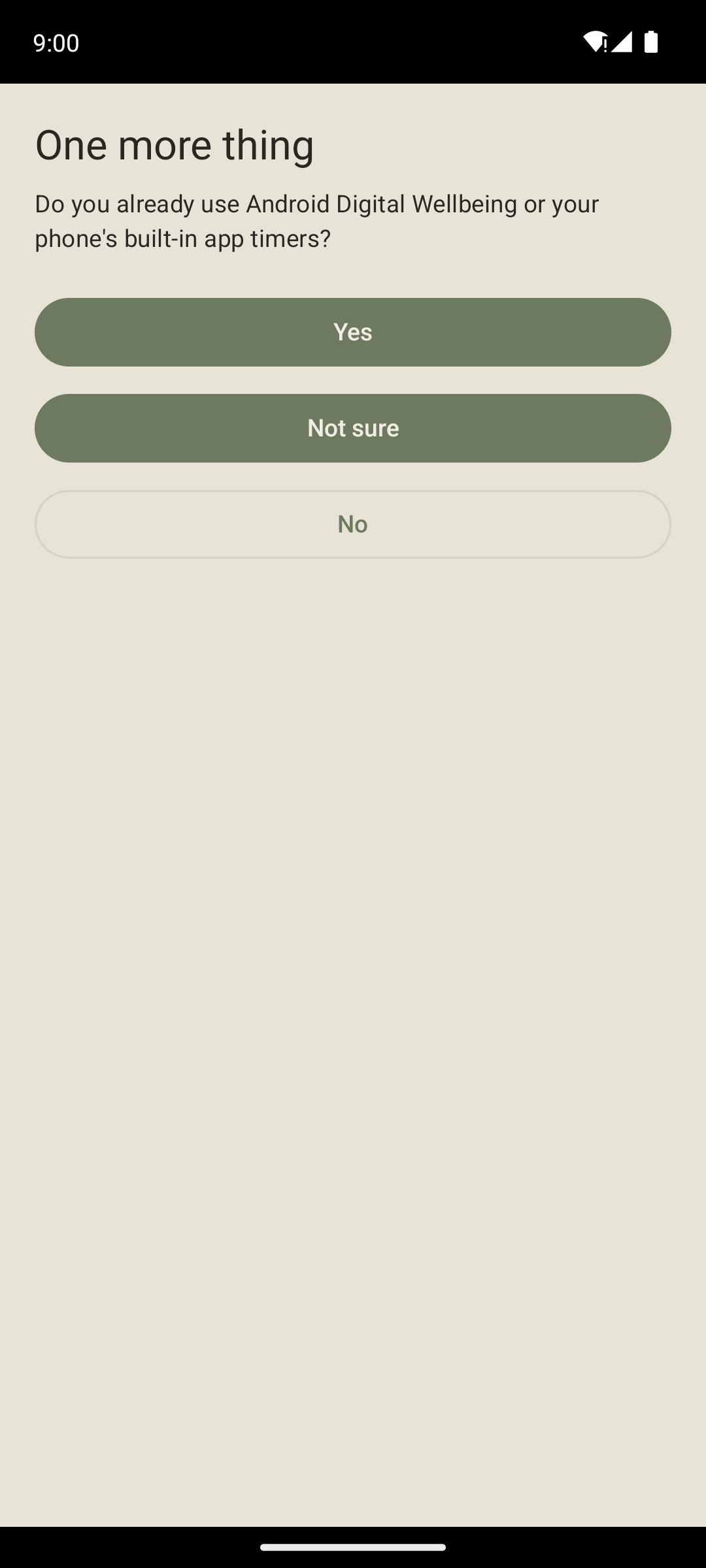
One more thing
Asks about Digital Wellbeing instead of silently stacking a second limit.
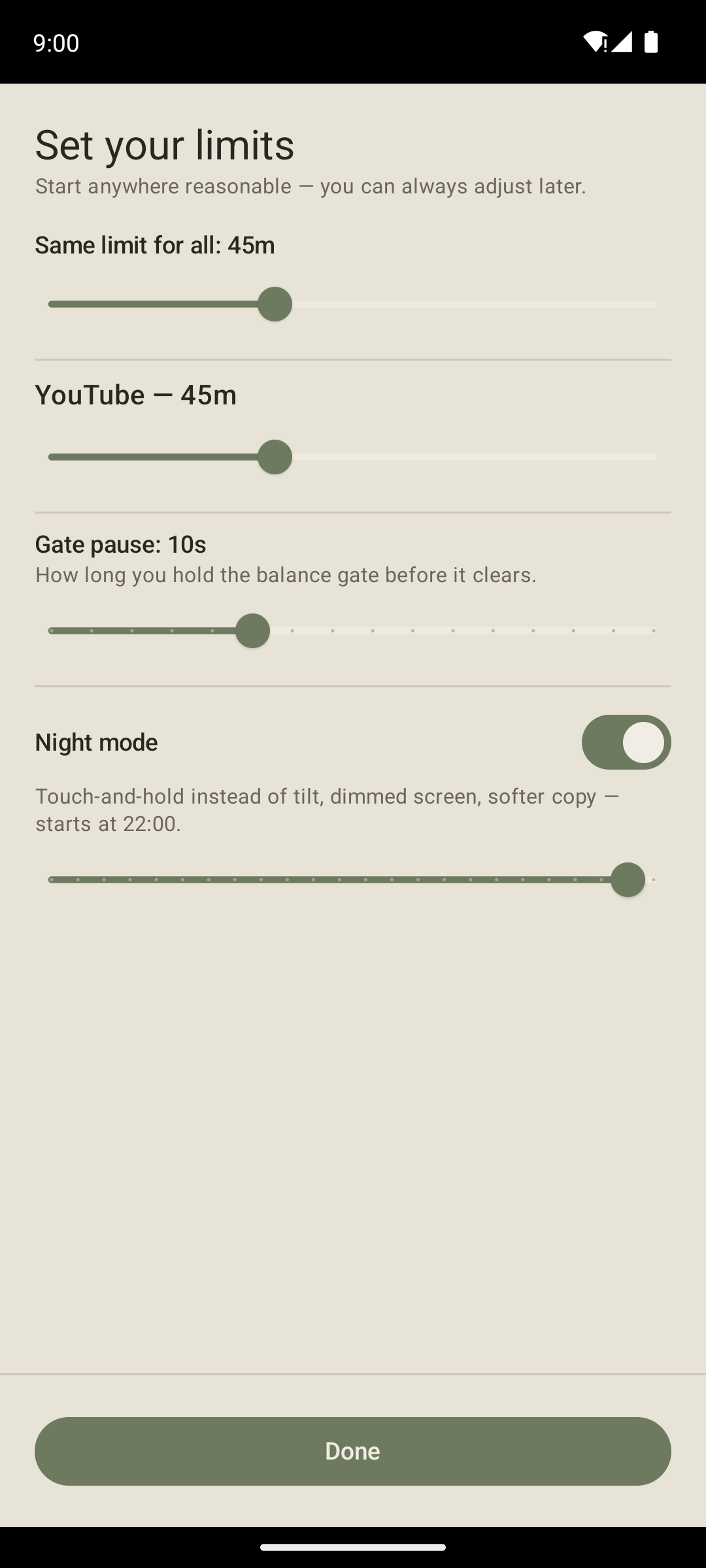
Set your limits
Per-app sliders, gate pause, night mode — all in one place.
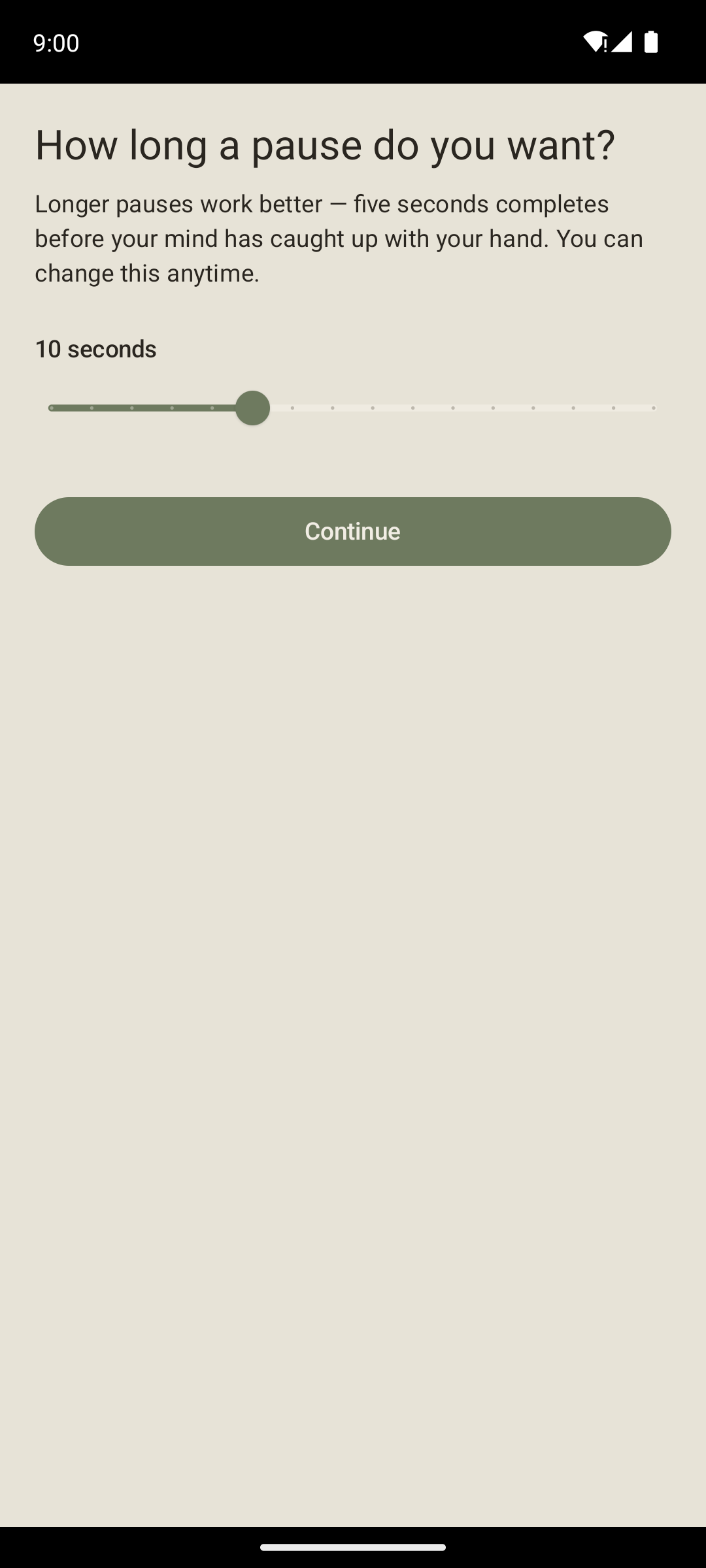
How long a pause?
User-defined, 5–20s, framed as a commitment.
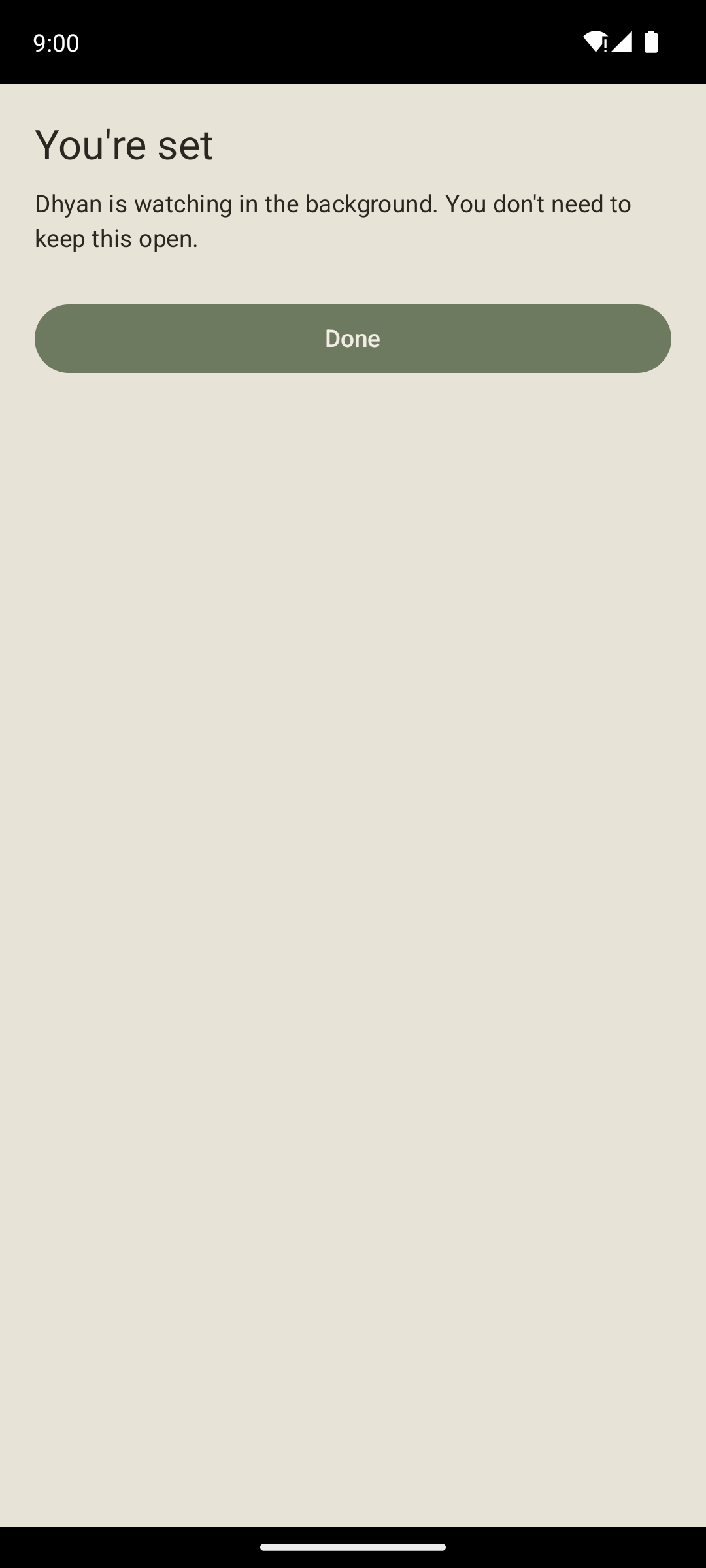
You're set
Tells you it's ambient — you don't need to keep it open.
Every day after
Living with it
The garden canvas is the home screen — a mood line overlays the bottom, detail lives one tap away in a pull-up sheet, not on the default view.
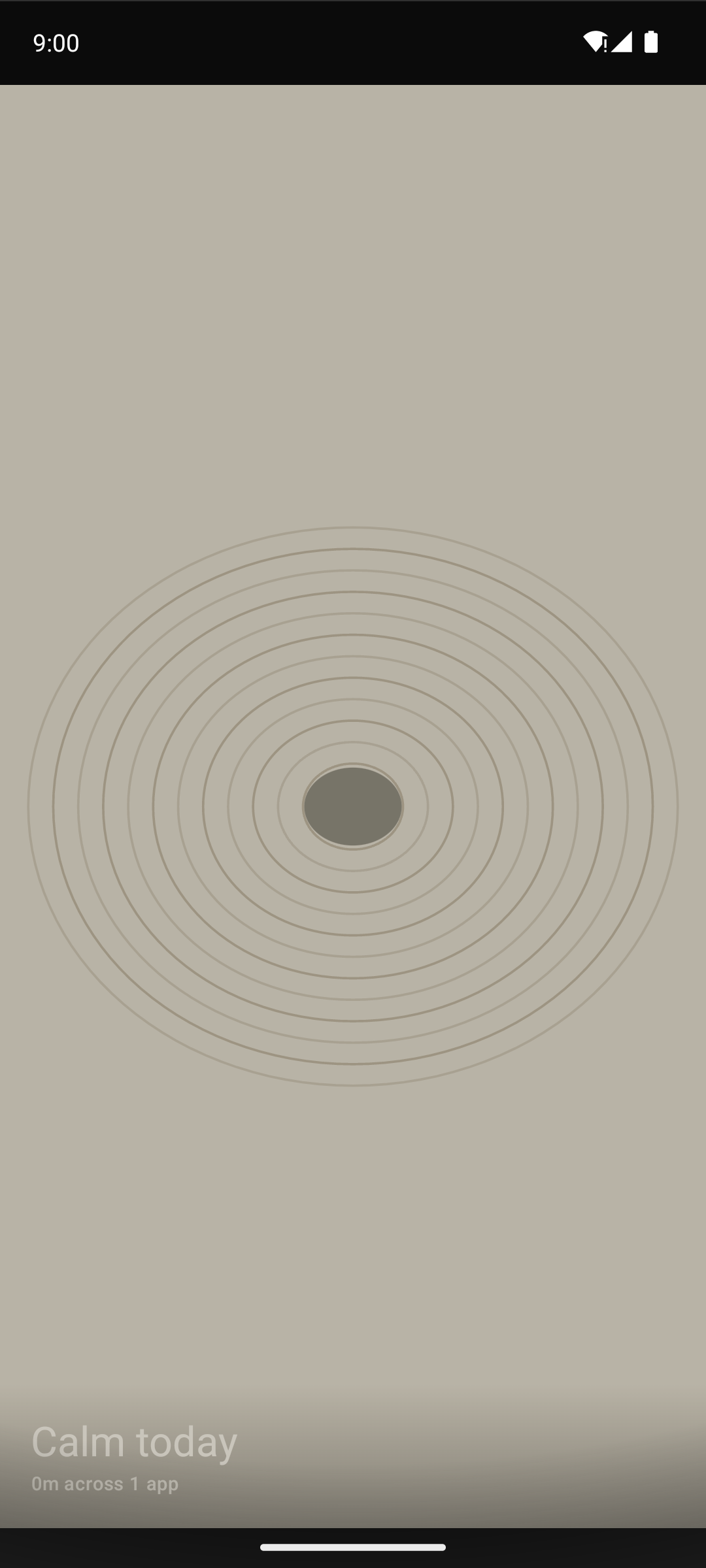
Calm today
Clean sand ridges, nothing over budget yet.
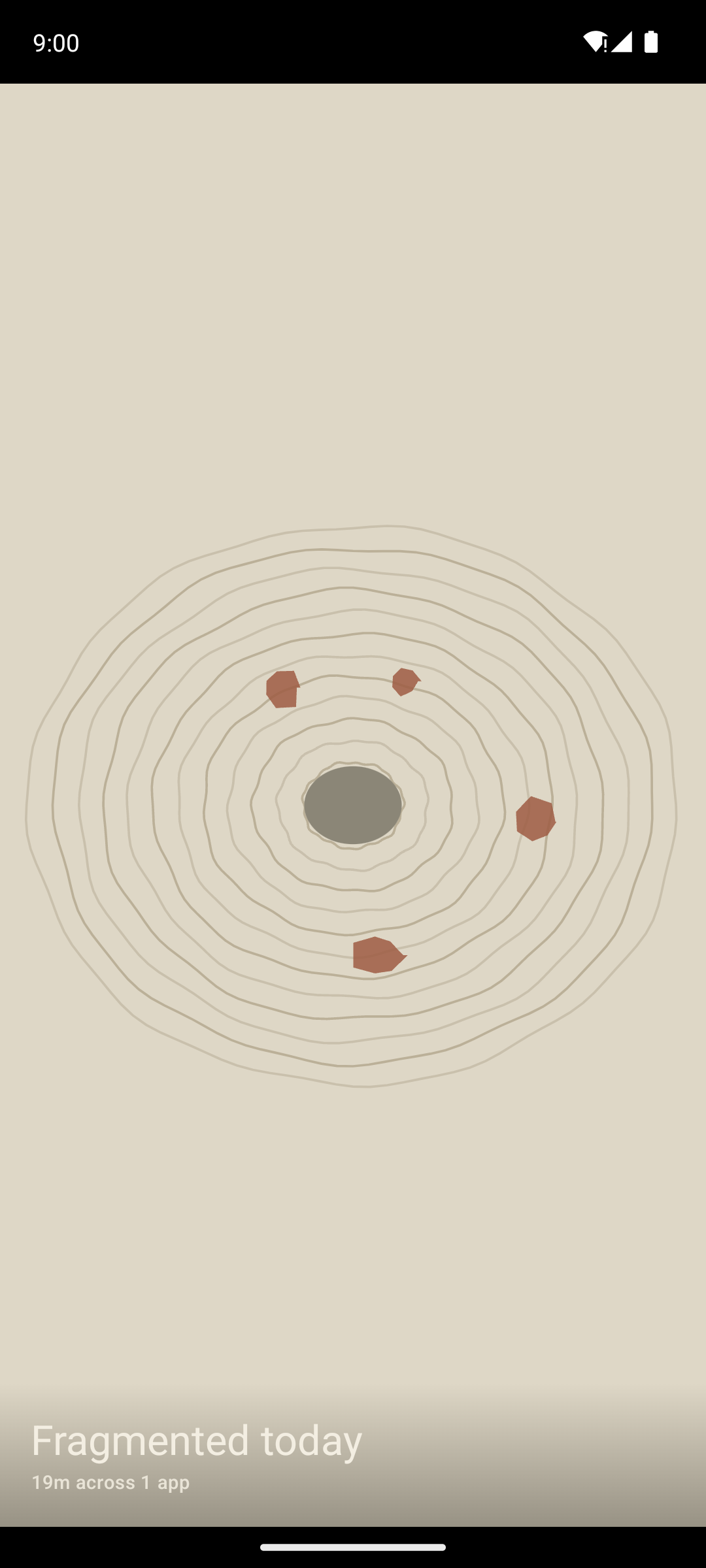
Fragmented today
Well over budget — boulders scatter, ridges break up.
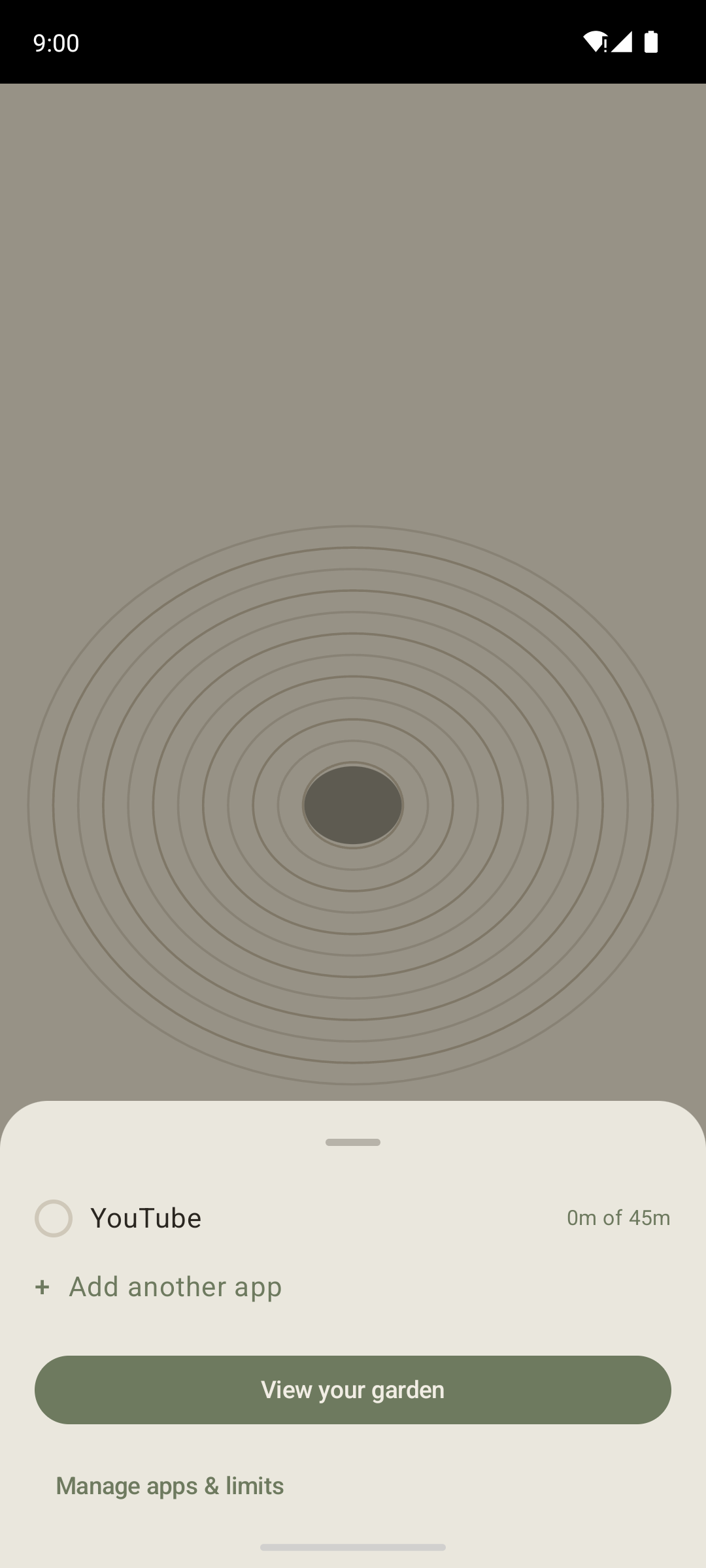
Per-app detail
Tap any row to jump straight to that app's limit.
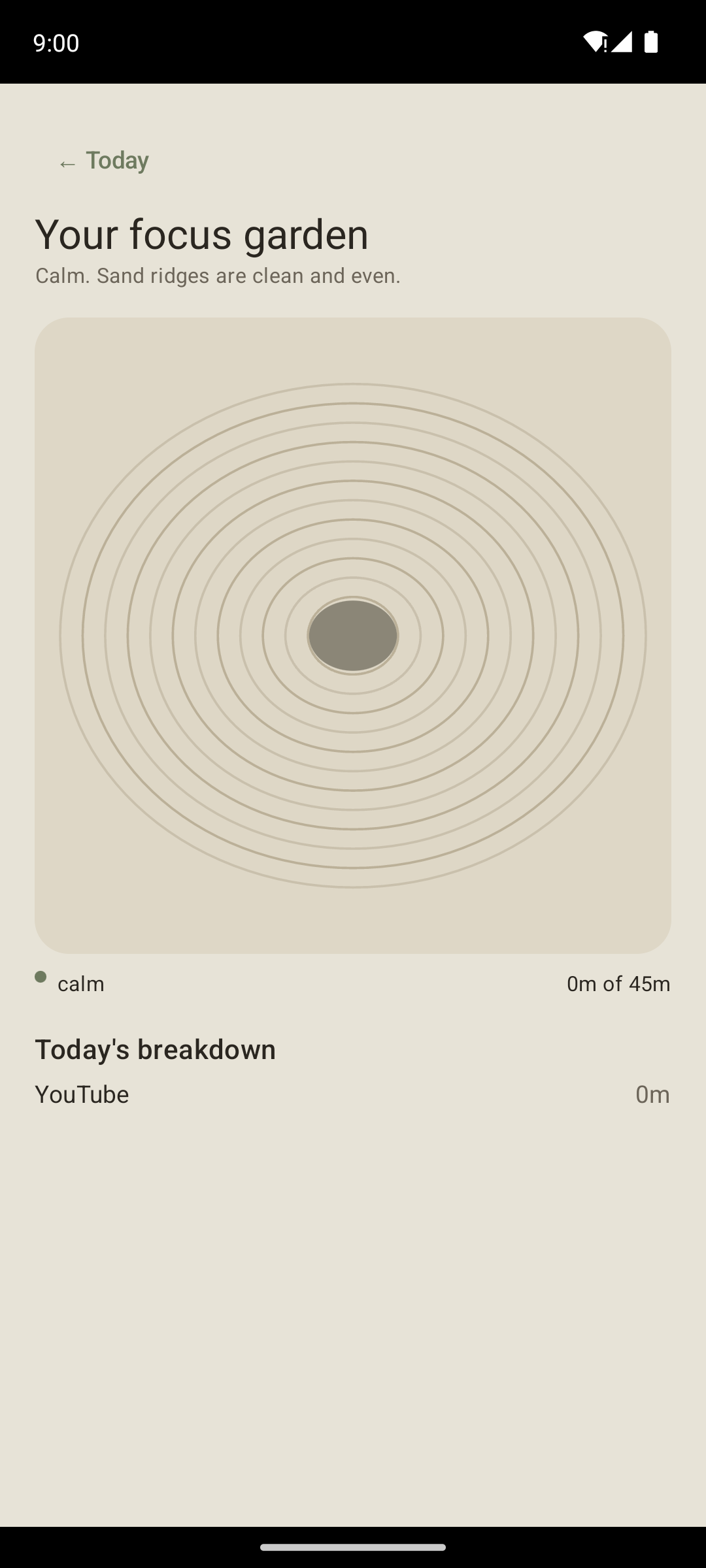
Your focus garden
The same canvas, full breakdown list below it.
Cross a limit
The gate, day and night
Tilt-to-balance in the day, touch-and-hold after dark — same physics, same earned-cooldown logic, different demand on a half-asleep hand. Solving it never just drops you back in silently.
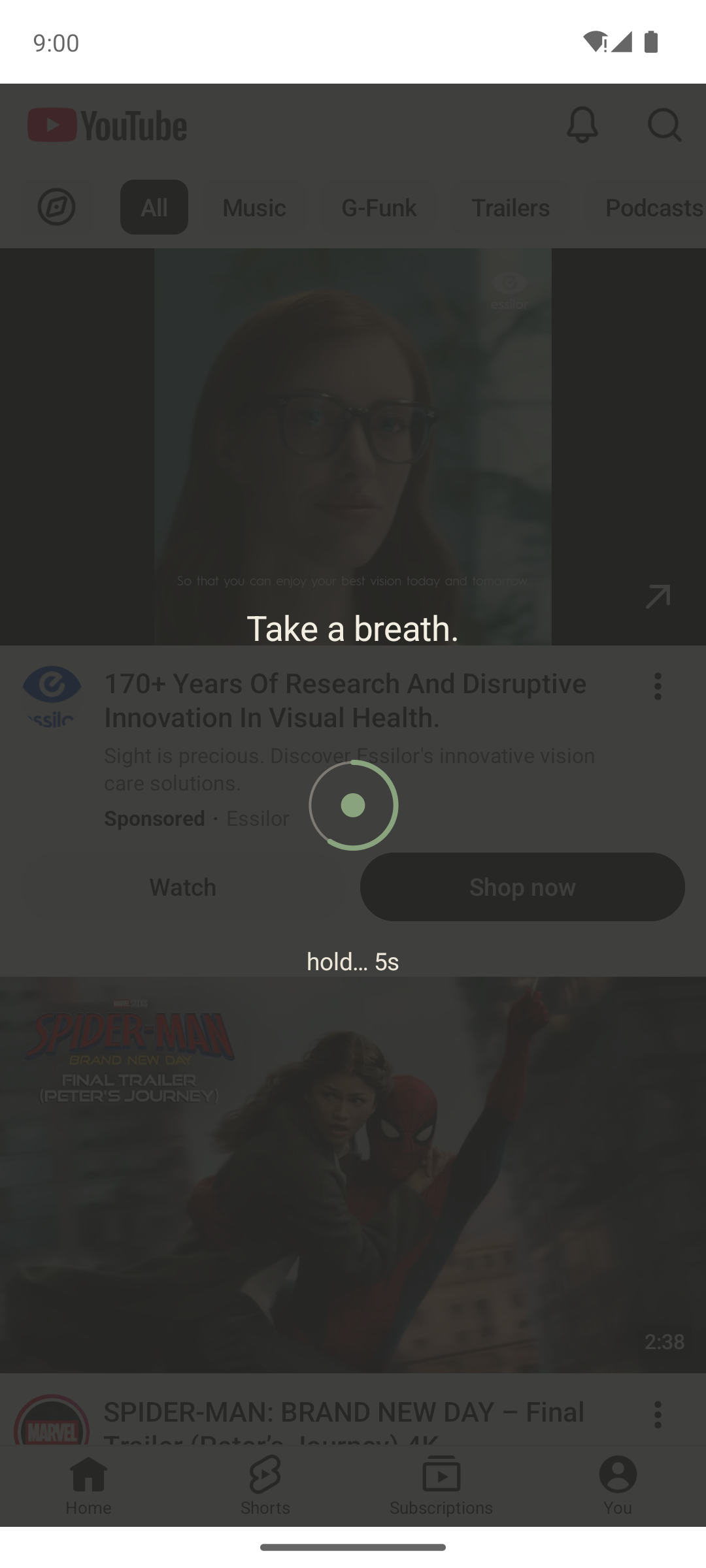
Take a breath.
Tilt the phone to centre the dot and hold it.
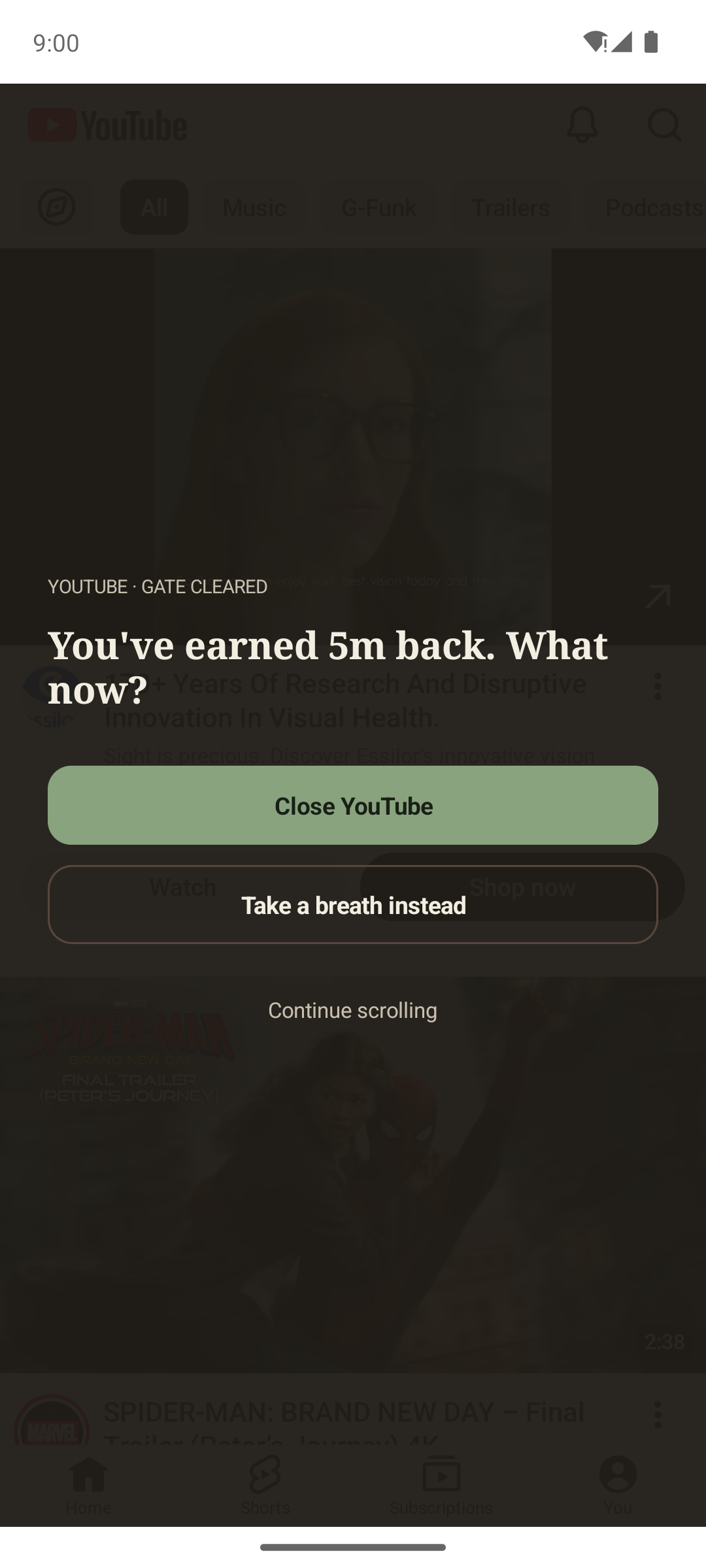
What now?
Close, take a breath, or continue — never a silent drop back in.
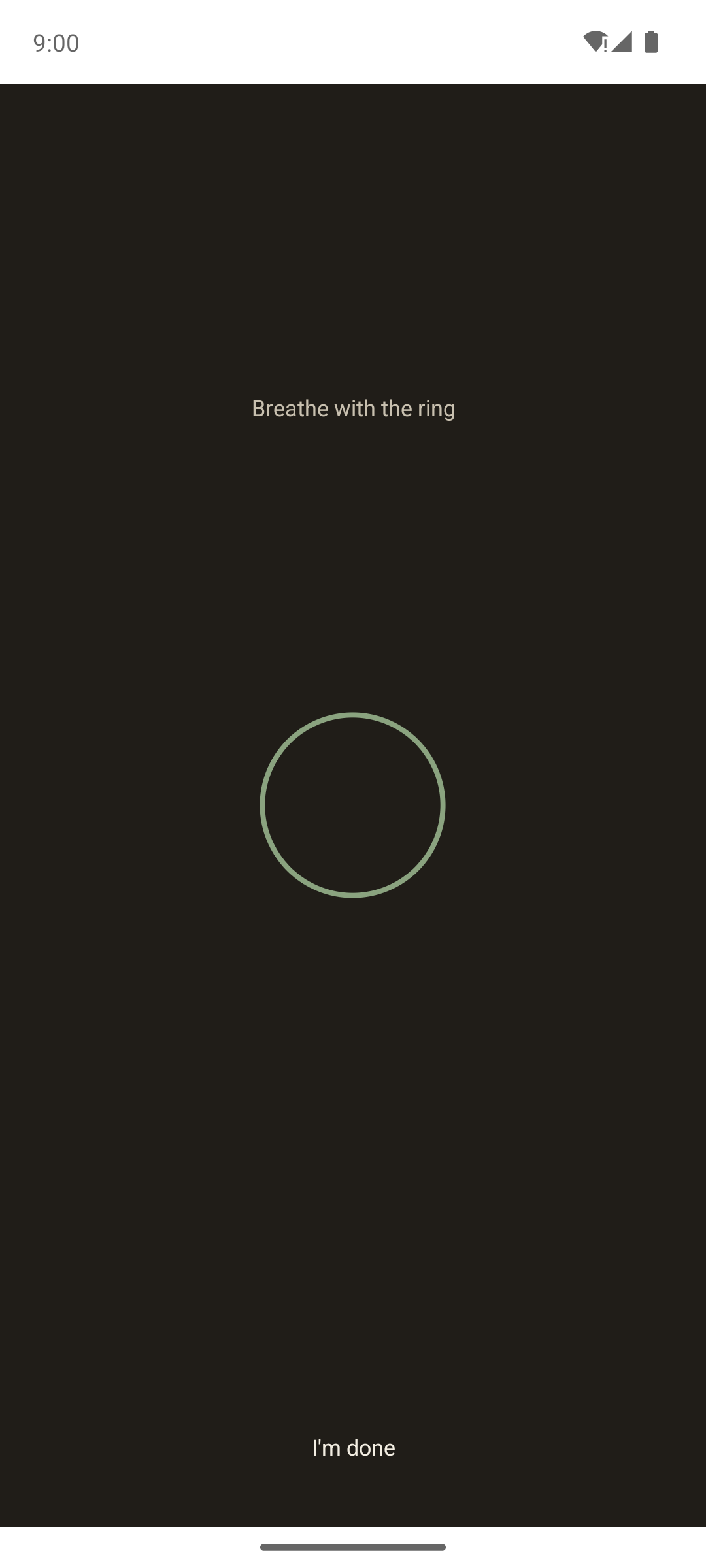
Breathe with the ring
A native paced-breathing screen, not a third-party hand-off.
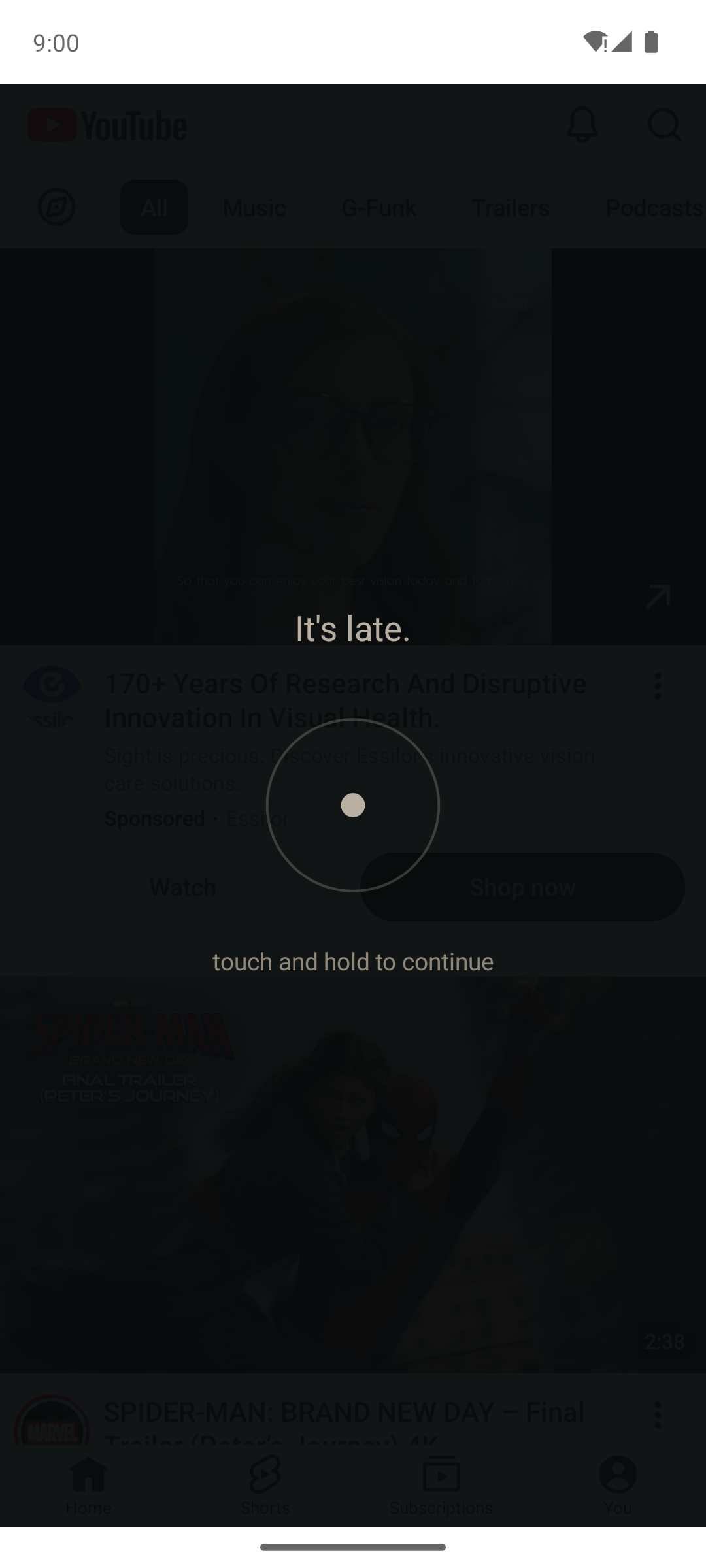
It's late.
Touch-and-hold instead of tilt — no motor coordination demanded half-asleep.
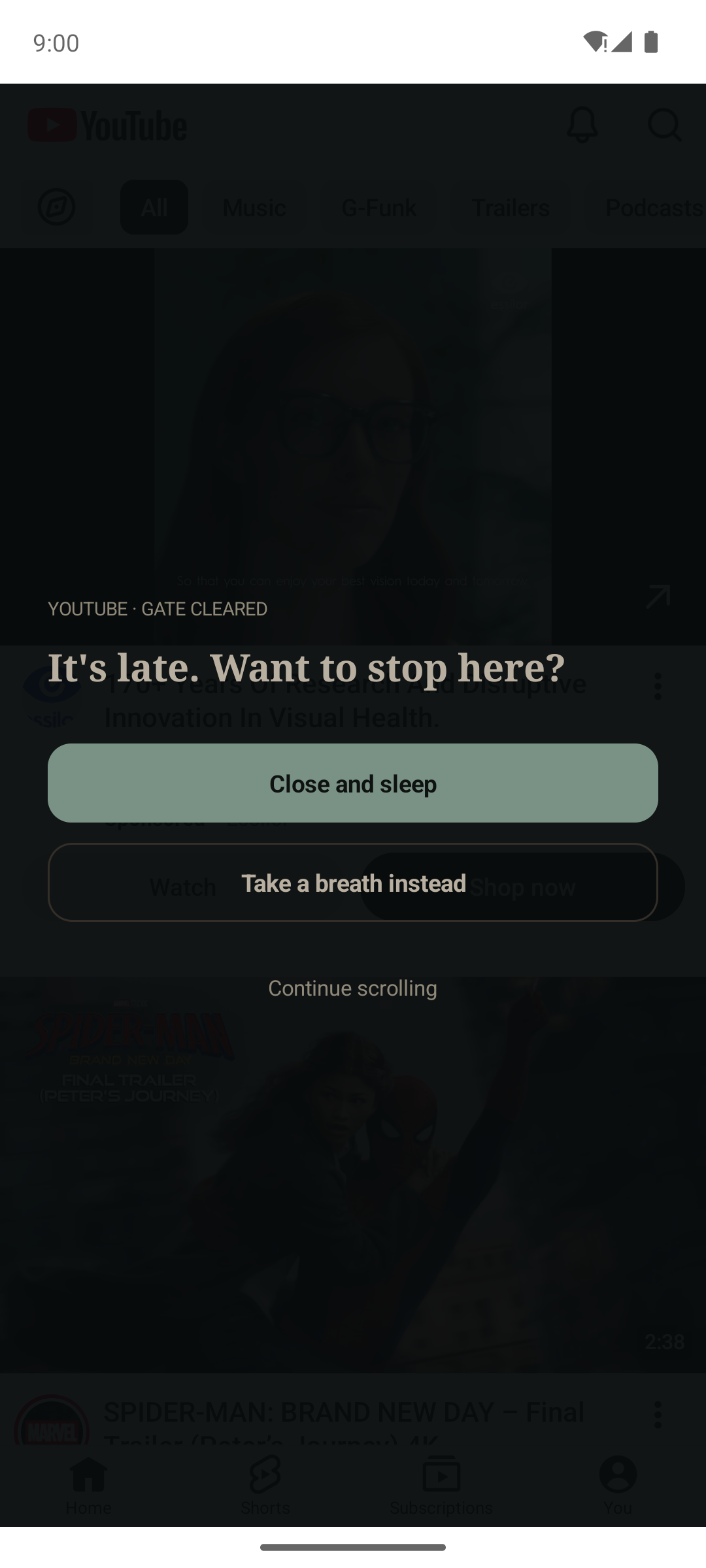
Want to stop here?
Same choice, softened copy — "Close and sleep."
The rest of the time
Ambient awareness
Hidden until the final 2 minutes of budget — an always-on timer for the whole session read as wallpaper, so it only shows up once it's actually actionable.
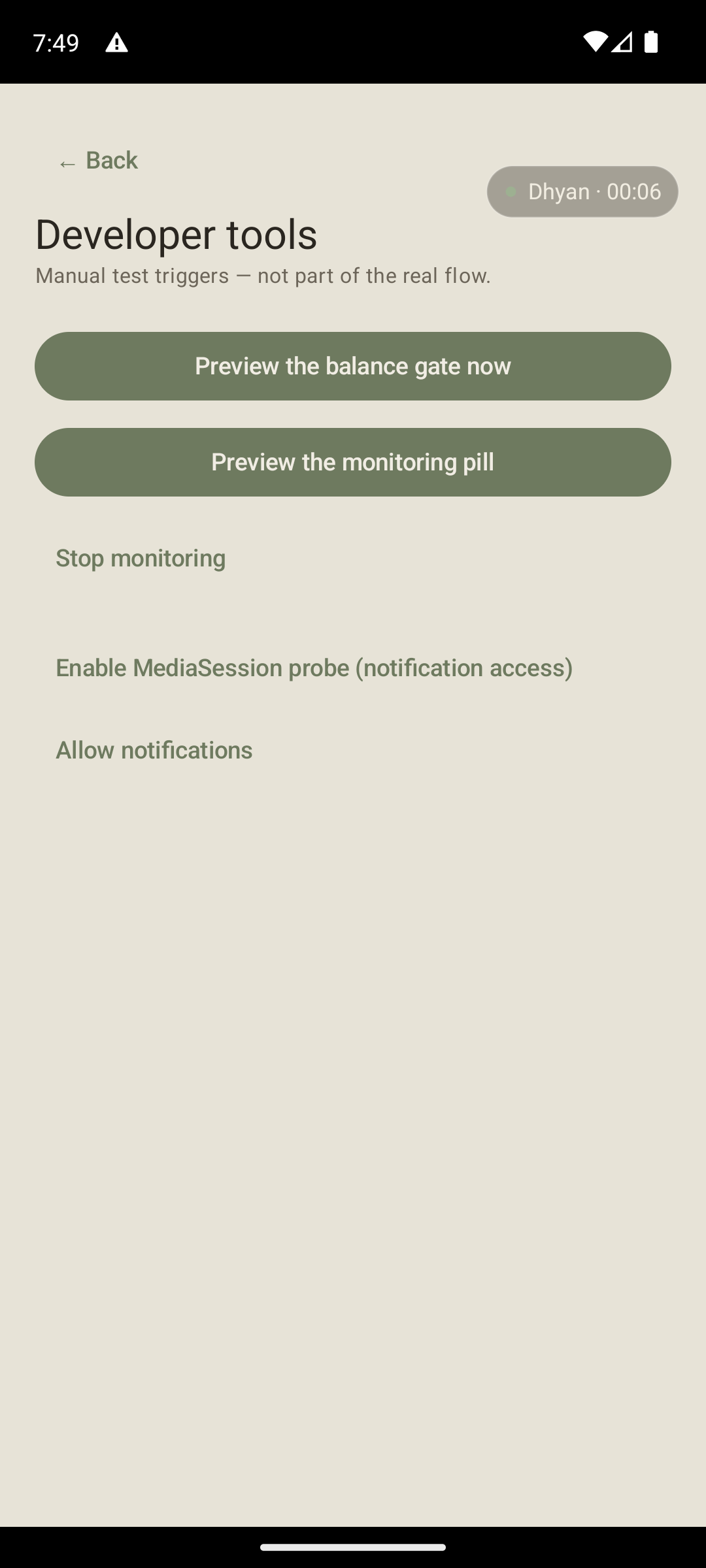
Quiet countdown
Moss dot, no glow — just a number ticking down.
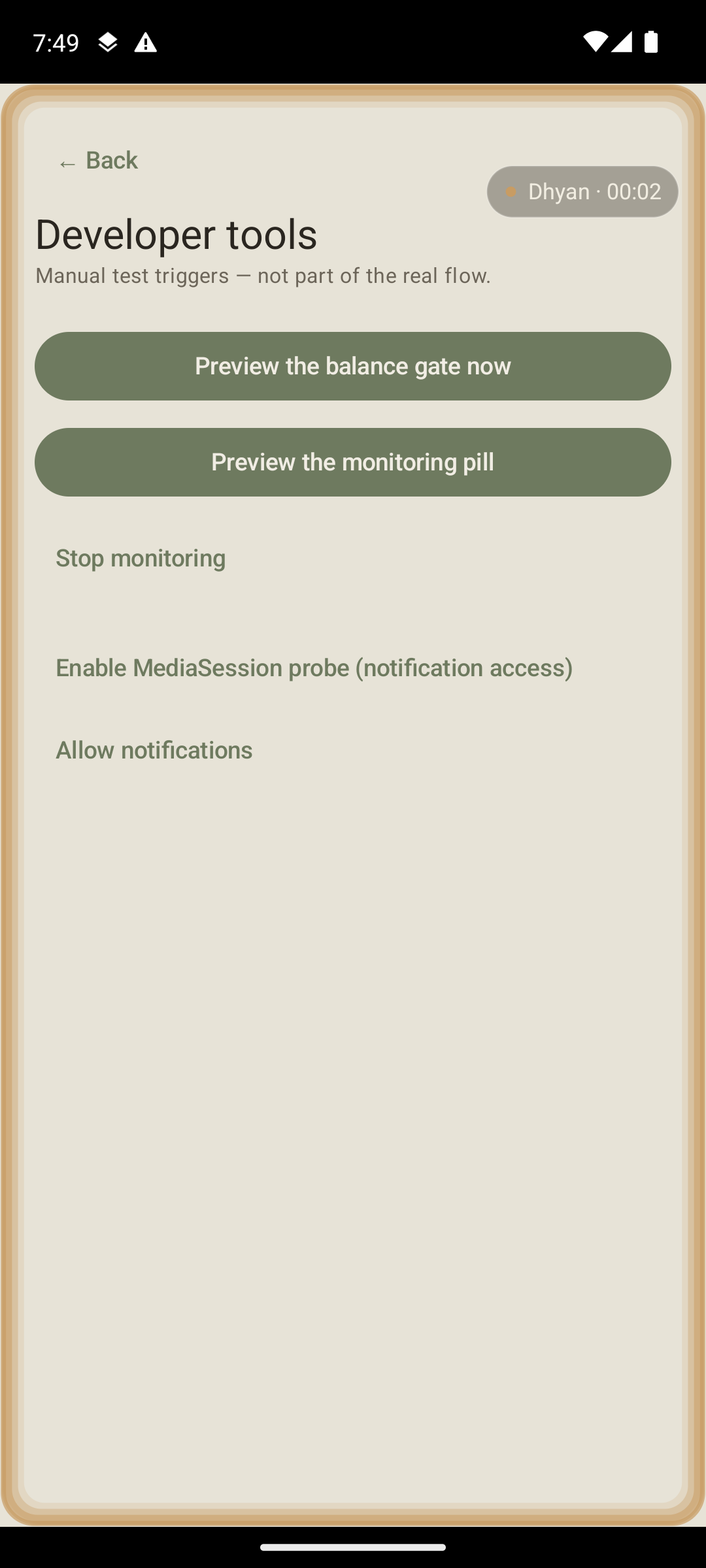
Amber warn
A breathing perimeter glow in the final stretch.